
OpenPrinting: The Open-Source Backbone of Linux Printing
A practical guide to OpenPrinting: CUPS, IPP, driverless printing, troubleshooting, and how to contribute.
Introduction
Printing is one of those “boring but essential” capabilities that most users expect to just work. On Linux, that smooth experience is largely thanks to the OpenPrinting community and the software stack it maintains.
Whether you are a sysadmin managing a fleet of printers or a developer looking to contribute to open source, understanding how Linux talks to paper is crucial. This post explains the architecture of OpenPrinting, how its major components (especially CUPS and IPP) fit together, and provides a cheat sheet for daily operations.
Quick Summary (TL;DR): OpenPrinting enables standardized, driverless printing on Linux using CUPS (the spooler) and IPP (the protocol). This guide covers architecture, CLI commands, troubleshooting, and contribution paths.
What is OpenPrinting?
OpenPrinting is an open-source initiative focused on improving printing support on Linux and Unix-like systems. Historically, printing relied on fragile, vendor-specific drivers. OpenPrinting aims to eliminate those pain points by collaborating with printer vendors and Linux distributions to promote standardized protocols and user-space solutions.
Core Components
The Linux printing stack is modular. Here are the key players:
1. CUPS (Common UNIX Printing System)
CUPS is the heart of Linux printing. It runs entirely in user space, acting as the print server that manages jobs and queues.
- Role: Spooler, Scheduler, Filter Manager.
- Key Config:
/etc/cups/cupsd.conf - Logs:
/var/log/cups/

2. IPP (Internet Printing Protocol)
If CUPS is the heart, IPP is the language it speaks. IPP is a modern network protocol that handles discovery, job submission, and status reporting. It is the foundation of Driverless Printing.
3. Driverless Printing (IPP Everywhere)
Gone are the days of hunting for specific PPD (PostScript Printer Description) files.
- How it works: Printers advertise their capabilities (paper size, color, resolution) via IPP.
- The Benefit: CUPS auto-configures compatible printers without downloading external drivers.
- Printer Applications: For legacy devices that don't speak IPP natively, "Printer Applications" act as software emulators to make them compliant.
How It Works: The Architecture
Understanding the flow of a print job helps immensely when things go wrong.
graph LR
    User[User Application] -->|Submit Job| CUPS[CUPS Scheduler]
    CUPS -->|Process| Filters[Filters/Ghostscript]
    Filters -->|Convert| Backend["Backend (USB/Net)"]
    Backend -->|IPP/Data| Printer[Physical Printer]
    Printer -.->|Status| CUPS
- Application: (e.g., LibreOffice) sends a PDF/PostScript to CUPS.
- CUPS: Queues the job and determines which filters are needed.
- Filters: Convert the input format into the specific raster or command language the printer understands.
- Backend: Transmits the data over USB or Network (via IPP) to the device.
Sysadmin Cheat Sheet: Practical Commands
These commands assume CUPS is installed. They are essential for headless server management.
Setup & Discovery
lpinfo -v: List available devices/backendsippfind: Scan network for IPP printersavahi-browse -rt _ipp._tcp: Detailed mDNS discoverydriverless: List driverless-capable devices
Managing Printers
# Add a driverless printer (IPP Everywhere)
sudo lpadmin -p OfficePrinter -E -v ipp://printer.local/ipp/ -m everywhere

# Set as default
sudo lpoptions -d OfficePrinter

# Check status of all printers
lpstat -p -d
Job Management
# Print a PDF file
lp -d OfficePrinter document.pdf

# Cancel a specific job
cancel <job-id>

# Nuke the queue (cancel all jobs)
cancel -a OfficePrinter
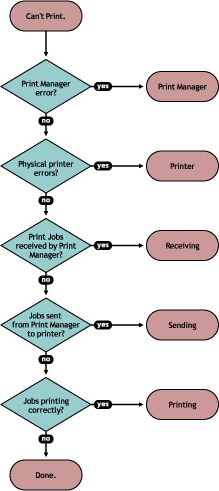
Troubleshooting Guide
When printing fails, it usually fails silently. Here is how to make it talk.
1. The Printer is Not Discovered
Check mDNS: Driverless printing relies on Bonjour/Avahi.
avahi-browse -aFirewall: Ensure TCP port 631 (IPP) and UDP port 5353 (mDNS) are open.
2. "Filter Failed" Errors
This usually means CUPS couldn't convert the file.
Debug Mode: This is your best friend.
- Edit
/etc/cups/cupsd.confand changeLogLevel warntoLogLevel debug. - Restart CUPS:
sudo systemctl restart cups. - Watch the logs live:
journalctl -u cups -f3. Legacy USB Issues
Warning: Legacy USB printers often require specific permissions. Check lsusb to see if the kernel detects the device, and ensure your user is in the lp group.
Contributing to OpenPrinting
OpenPrinting is a community-driven project. We need help from developers (C/C++), documentation writers, and testers.
Where to start?
- GitHub Organization: https://github.com/OpenPrinting
- Key Repos:
cups: The core printing system.ipp-usb: Daemon for treating USB devices as network devices.cups-filters: The backend filters.
For GSoC Applicants
If you are looking to join via Google Summer of Code:
- Don't just ask "How can I help?".
- Pick a "Good First Issue".
- Reproduce a bug and post your logs.
- Write a small documentation fix to learn the PR workflow.
FAQ
Q: Is OpenPrinting part of the Linux kernel?
No. Printing happens in user space. The kernel only handles the raw communication (USB/Network packets). This architecture improves system stability—a bad printer driver cannot crash your kernel.
Q: Will my 15-year-old printer work?
Likely, yes. While modern workflows prefer IPP, OpenPrinting maintains legacy databases (Foomatic) and Printer Applications to keep older hardware running.
Q: Is IPP secure?
IPP supports TLS (IPPS) and access control. In an enterprise environment, always use ipps:// and enforce authentication in cupsd.conf.
Final Thoughts
OpenPrinting quietly powers one of the most important subsystems on Linux. Its focus on standards, driverless workflows, and community collaboration ensures printing remains reliable and future-proof.
Whether you're a sysadmin debugging a queue or a student looking for your first open-source commit, the ecosystem is welcoming and vital.
Ready to experiment? Try setting up a local print queue on your machine today using the command line examples above!